New Security Feature in Tabernacle - Remote Logout
A lost or damage laptop should not mean open access. See how Tabernacle admins can sign users out of devices remotely.
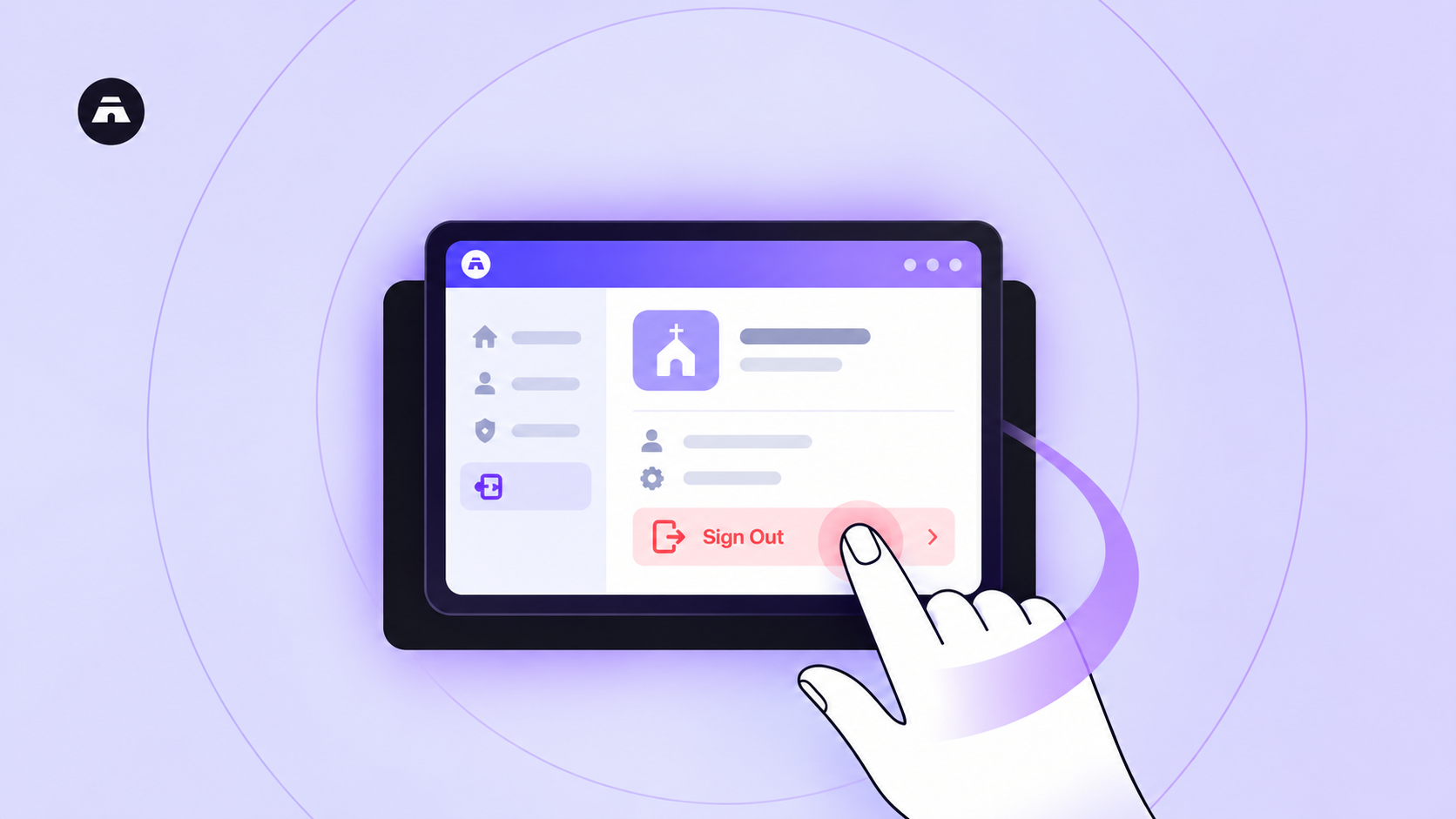
A staff laptop was damaged and is on repair. Their tabernacle account is still signed in on it.
With the new logout feature, an admin can see where that account is signed in and can immediately end the session from the System Users page. You don’t need the person, or the laptop, to do it.
What is Remote logout in Tabernacle?
Remote logout lets an Admin sign a user out of any device they are signed in on. You can sign out one device or all of them.
Every device is listed in one place, so you can actually see where an account is being used.
How does remote logout work?
Step 1: On your Tabernacle Dashboard either on People or Finance module go to System User Page
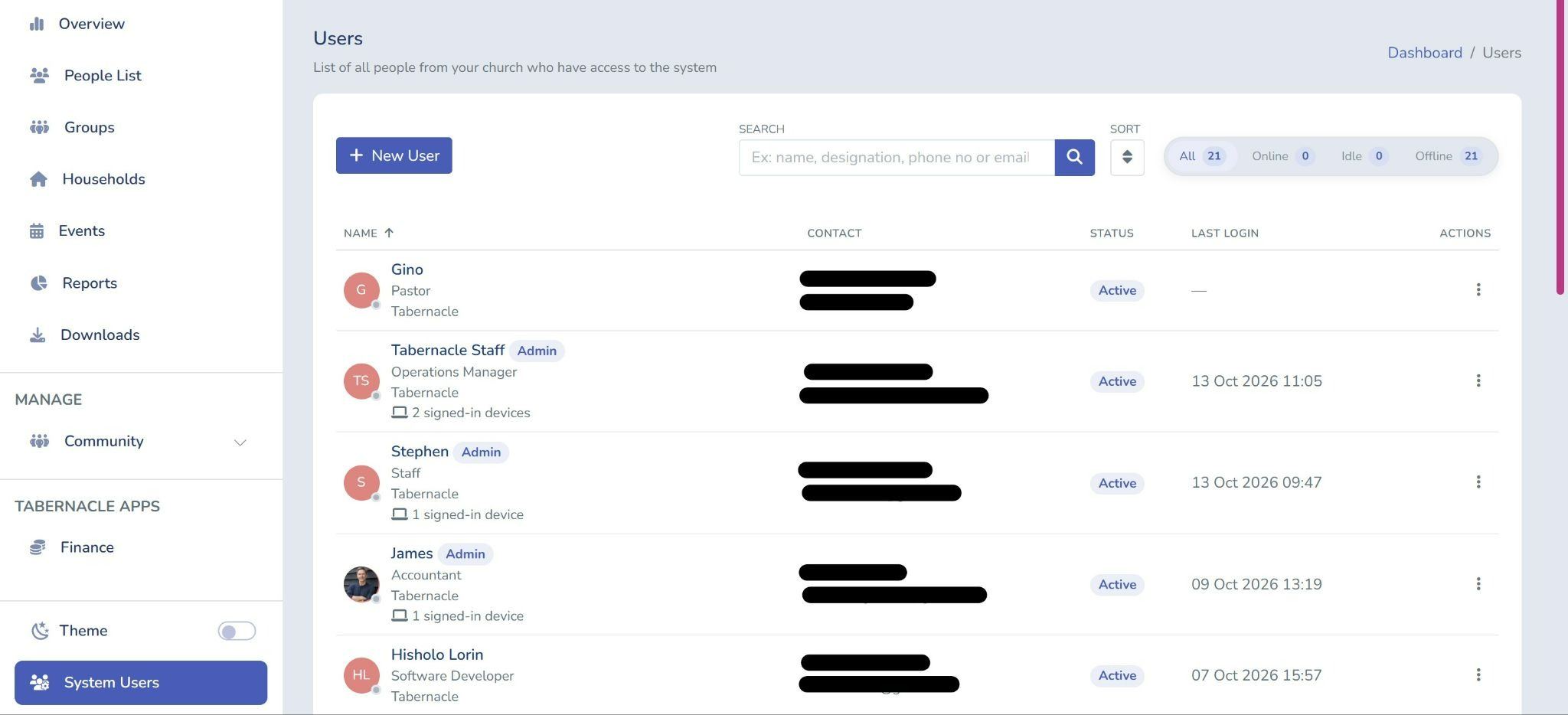
The user page lists everyone in your church who has access to the system. Under each name, you can see how many devices that person is signed in on.
Step 2: Open the actions menu
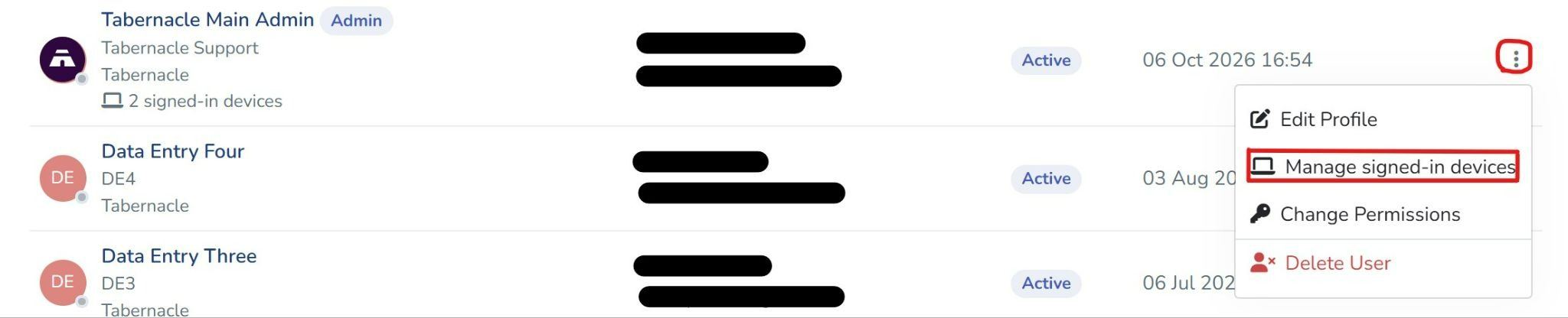
Click the three dots next to a user and choose manage signed-in devices.
Step 3: Sign out a device
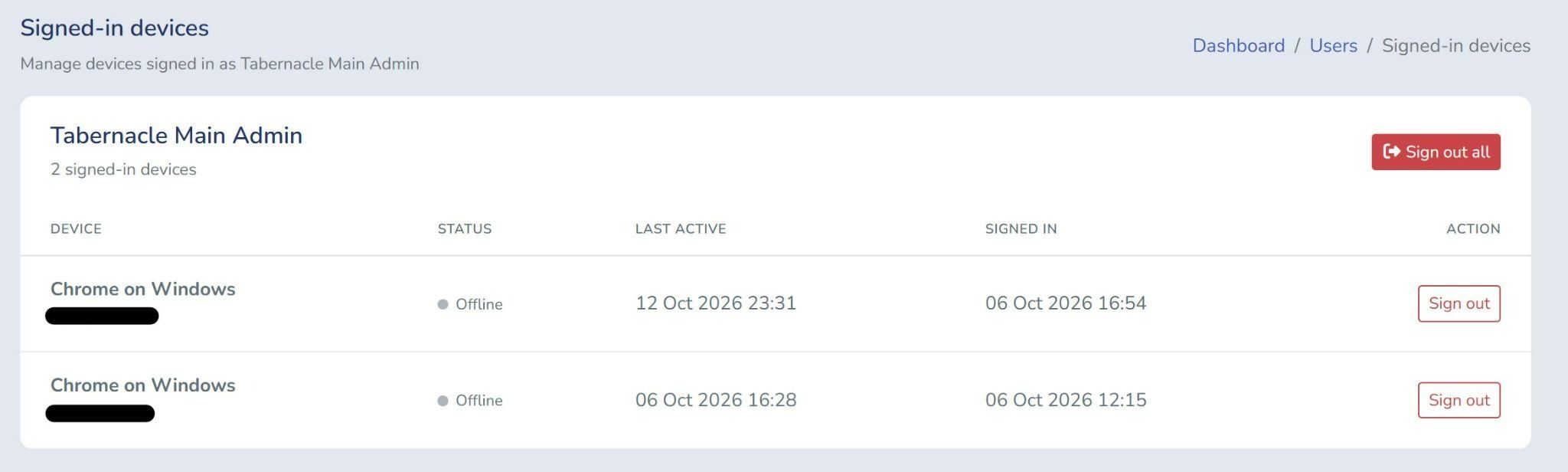
Review the devices listed for that user, then choose:
-
Sign out to end one device
-
Sign out all to end every signed-in device for that user
What can you see on the signed-in device page?
For each device, you will see:
-
The browser and operating system, such as chrome on windows
-
The IP address
-
The status, such as offline
-
When the device was last active
-
The date and time it signed in
Some instances where the admin can use the logout feature
-
A staff member loses laptop or tablet
-
A device appears that you are not aware or recognise
-
Someone leaves the team and still has access
-
Someone has used a shared computer in the church office
-
Temporary helper had access for an event or campaign
-
You have changed a user’s permissions and want old sessions closed
-
A device signed in weeks ago and is no longer in use
A quick look at the signed-in device count on the System user page is an easy routine check. If the number is higher than you expect, open the list.
Why does this matter for churches?
Your Tabernacle account holds your member and household records, plus finance data. Deciding who gets access is one half of keeping it safe. Controlling who is still signed in is the other.
💙 Tabernacle Technologies
Church Administration: Building an Organised Ministry
Church administration covers records, money, people and meetings. See who in your church handles each part.

Duties and Responsibilities of a Church Treasurer
A church treasurer records gifts, banks them, pays approved bills and reports to the church. Here are the seven duties …

Church Treasurer Handover: Why Every New Treasurer Starts From Scratch
Most church treasurer handovers fail because records live in one person's head. Here's what actually needs to change ha…
